By the end of this guide, your Vercel token will be saved in the starter's root .env file and GitHub will be connected for deployment. Kickstart creates the Vercel project and configures hosting for you.
You only need Vercel when you're ready to deploy. Finish the first Kickstart and prepare your GitHub access token before continuing.
Create and save the token
Create or sign in to your account
Open Vercel and sign up or sign in. Use the team that will own your app, with permission to create projects and deployments.
The free Hobby plan works for building and testing your deployment. It's limited to personal, non-commercial projects, so upgrade to Pro before your app takes payments.
Generate an access token
Open Account Tokens. This is under your personal account's Settings → Tokens, even when the app belongs to a team. The Create Token form appears on this page.
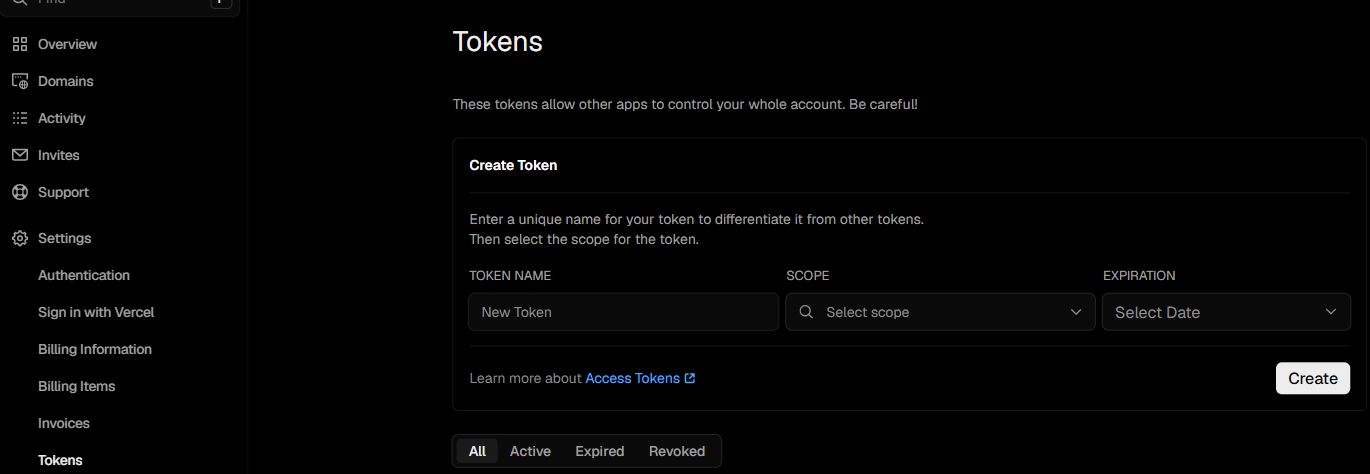
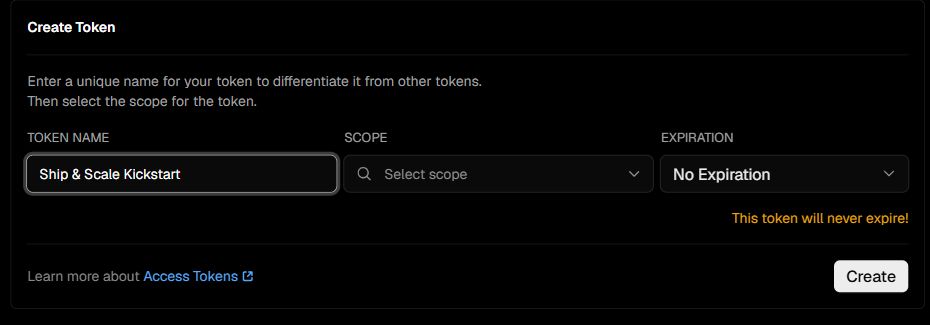
- Under Token Name, enter
Ship & Scale Kickstart. - Under Scope, select the team that will own your app. You don't need Full Account access.
- Under Expiration, choose 90 days. That covers deployment and any retries. Choose No Expiration only if a coding agent will keep using this token for Vercel changes, and revoke it when you no longer need it.
- Click Create and copy the token immediately. Vercel only shows its full value once.
The token must be scoped to the team that owns this project. Keep VERCEL_TEAM_ID and VERCEL_PROJECT_ID matched to the team and project saved during deployment. For a new project, leave the project ID blank until Kickstart records it; for later checks and secret updates, use the recorded project rather than a similarly named project.
Save it in .env
Open the root .env file beside package.json. Keep the settings from your local installation. Find the existing VERCEL_TOKEN= line, paste the token after the equals sign and save:
VERCEL_TOKEN=replace_with_your_vercel_tokenReplace the example with your real token and keep one active VERCEL_TOKEN line. For a new deployment, leave VERCEL_TEAM_ID, VERCEL_PROJECT_NAME, VERCEL_PROJECT_ID and APP_URL_LIVE blank. Kickstart fills them in.
Keep the token private
This token can manage resources in its selected scope until it expires or you revoke it. Keep it only in your local .env. Don't import your whole .env into Vercel; Kickstart uploads only the runtime values your app needs.
Connect GitHub
Vercel also needs its own connection to GitHub to read your app's code. Saving the two tokens does not create this connection.
Link your GitHub account
Open Vercel's Authentication settings. Under Sign-in Methods, connect GitHub using the same account as your GitHub token. If your GitHub username is already shown, this step is done.

Allow access to your app's repository
Open the Vercel GitHub App. Choose the account that will own your app's repository. For the automatic Kickstart setup, this is your personal GitHub account.
Kickstart creates your app's repository later, so it doesn't exist yet. Choose one of these:
- All repositories is the simplest path. Vercel can read the new repository as soon as Kickstart creates it. It also gives Vercel access to every current and future repository owned by that account.
- Only select repositories keeps access narrower. GitHub requires at least one repository here, so select any existing one for now. When Kickstart creates your app's repository, it pauses with a link; add the new repository there and rerun the same command.
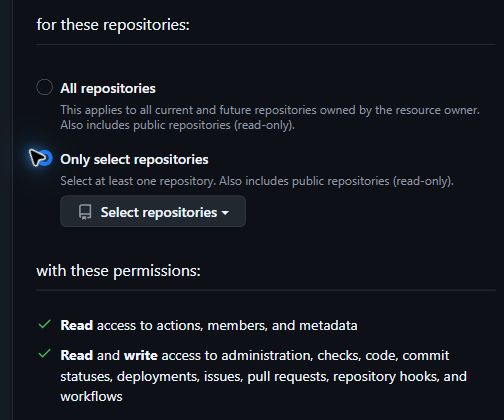
Review the permissions and click Install for a new installation or Save when updating one. If GitHub shows Request, an organization owner must approve it before you continue.
If Kickstart later pauses for repository access, keep the generated .env values and .kickstart files so the rerun continues with the same resources.
You are finished when
VERCEL_TOKENhas one saved value in your root.env.- Its scope matches the Vercel team that will host your app.
- GitHub is connected to Vercel, and the Vercel App is installed for your repository owner.
Once the other deployment prerequisites are ready, run:
npm run kickstart:deploy -- --checkThis checks access without creating provider resources. Access to a new repository is checked after Kickstart creates it during deployment.
Template 0.0.1 · September 2026 source snapshot