By the end of this guide, your GitHub token will be saved in the starter's root .env file. Deployment Kickstart uses it to create your app's private repository and publish your source code.
You can do this after your local app works. For downloading the starter, follow Setup; the deployment token isn't needed for your first Kickstart.
Create and save the token
Open Fine-grained tokens
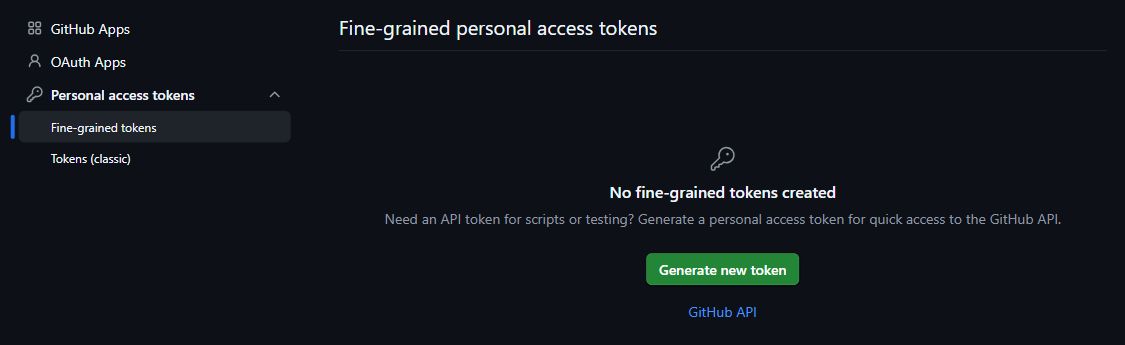
Sign in to GitHub, or create an account. Open Settings → Developer settings → Personal access tokens → Fine-grained tokens, or go directly to Fine-grained tokens.
Click Generate new token. If GitHub asks you to confirm access, complete its verification to continue.
Choose the owner and repository access
Fill in the token form:
- Token name: enter
Ship & Scale deployment. - Resource owner: choose the account or organization that will own the app repository. It must match
GITHUB_OWNER. - Expiration: choose 90 days. That covers deployment and retries; Kickstart only uses this token during deployment.
- Repository access: automatic repository creation needs All repositories, which also covers every current and future repo under that owner. To limit access to one repository, first create the exact empty private repository in GitHub, then choose Only select repositories and select that repository.
Leave Description blank unless you want to add a note.
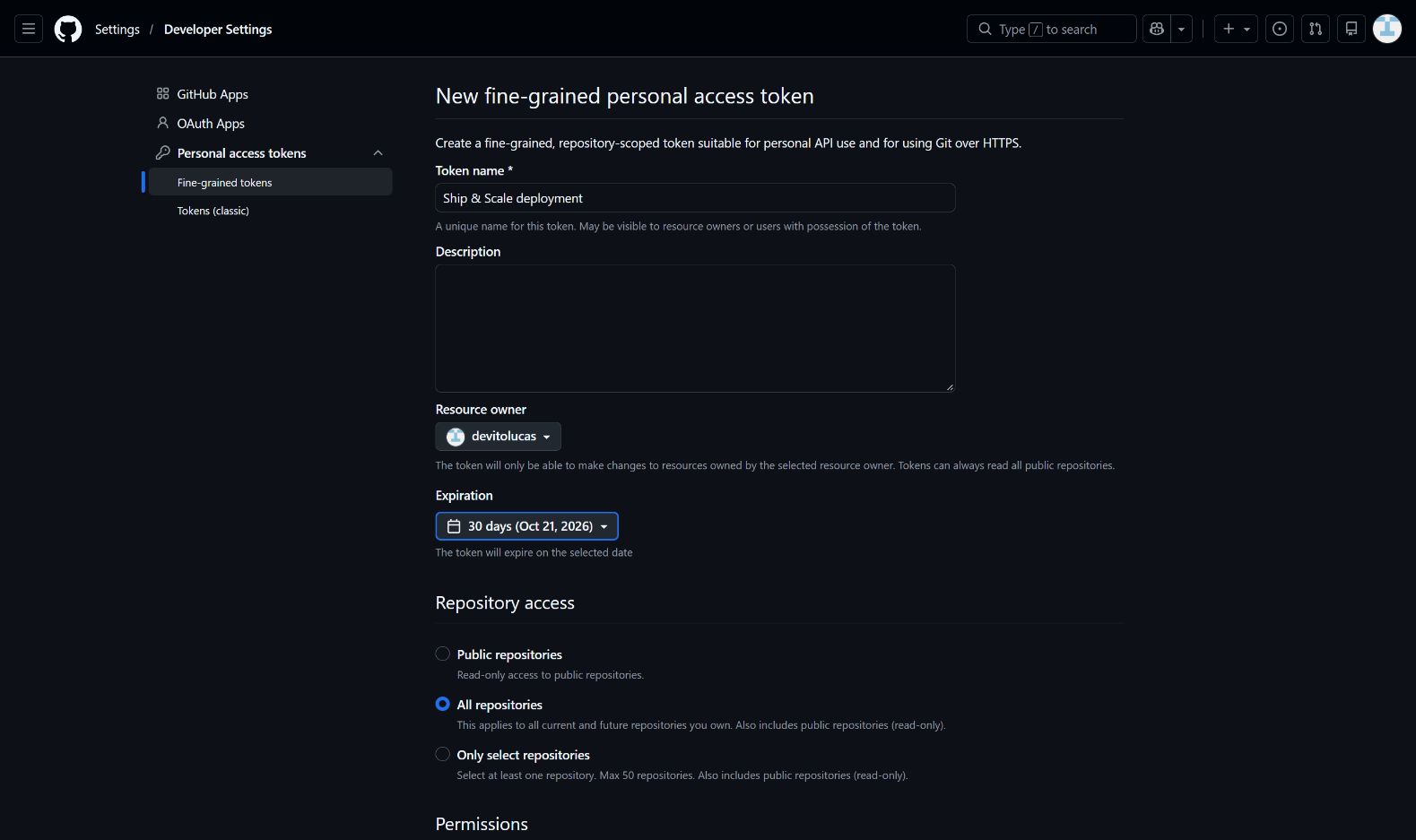
Automatic creation needs broad repository access
All repositories includes every current and future repository under the selected owner. A fine-grained token can select one owner only. For least access, precreate the exact empty private repository and use Only select repositories; set GITHUB_OWNER, GITHUB_REPO_NAME and its numeric GITHUB_REPO_ID to that repository before checking deployment.
Add the repository permissions
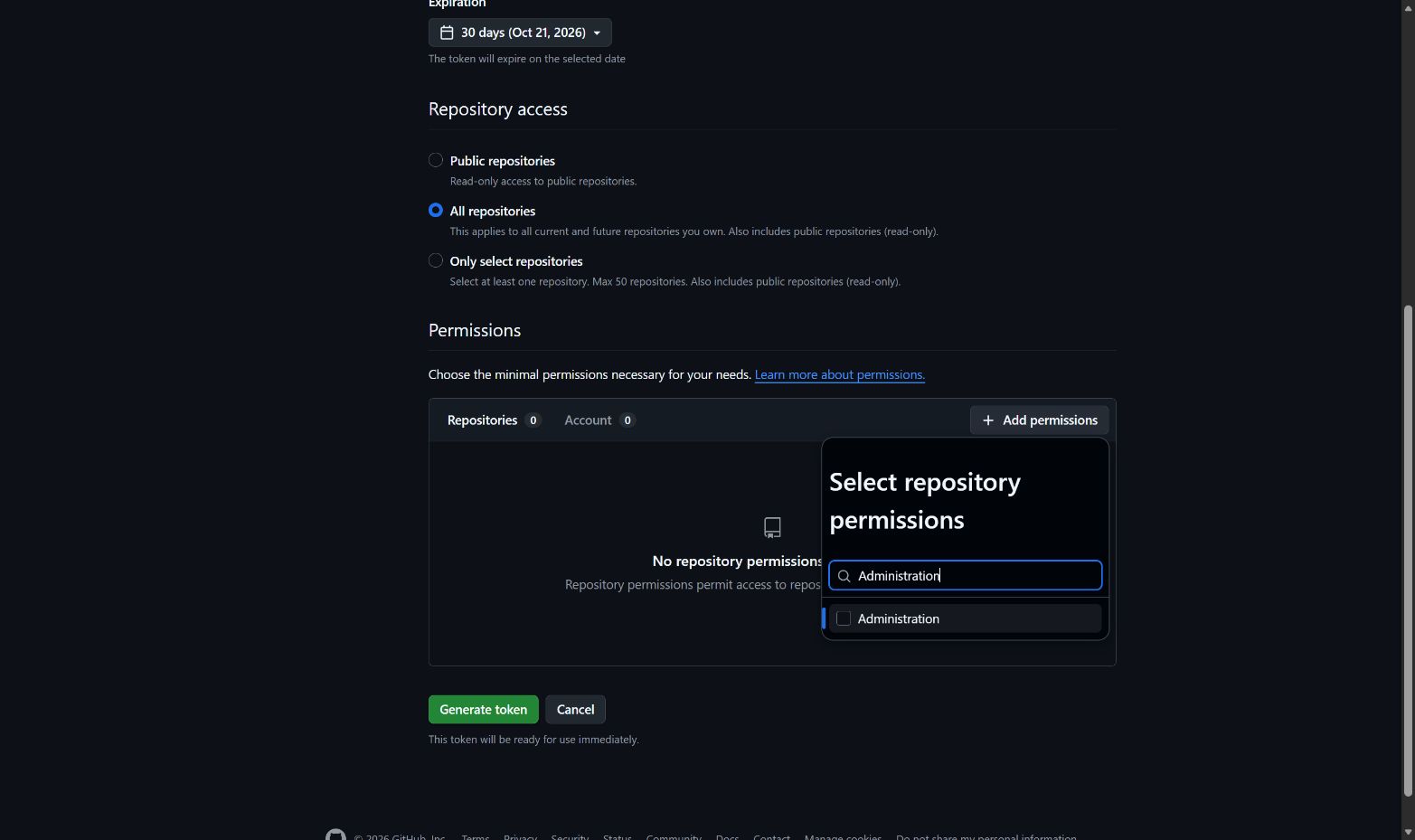
Scroll to Permissions. With Repositories selected, click Add permissions. Search for and select Administration, then Contents. Close the menu and change each permission's Access to Read and write.
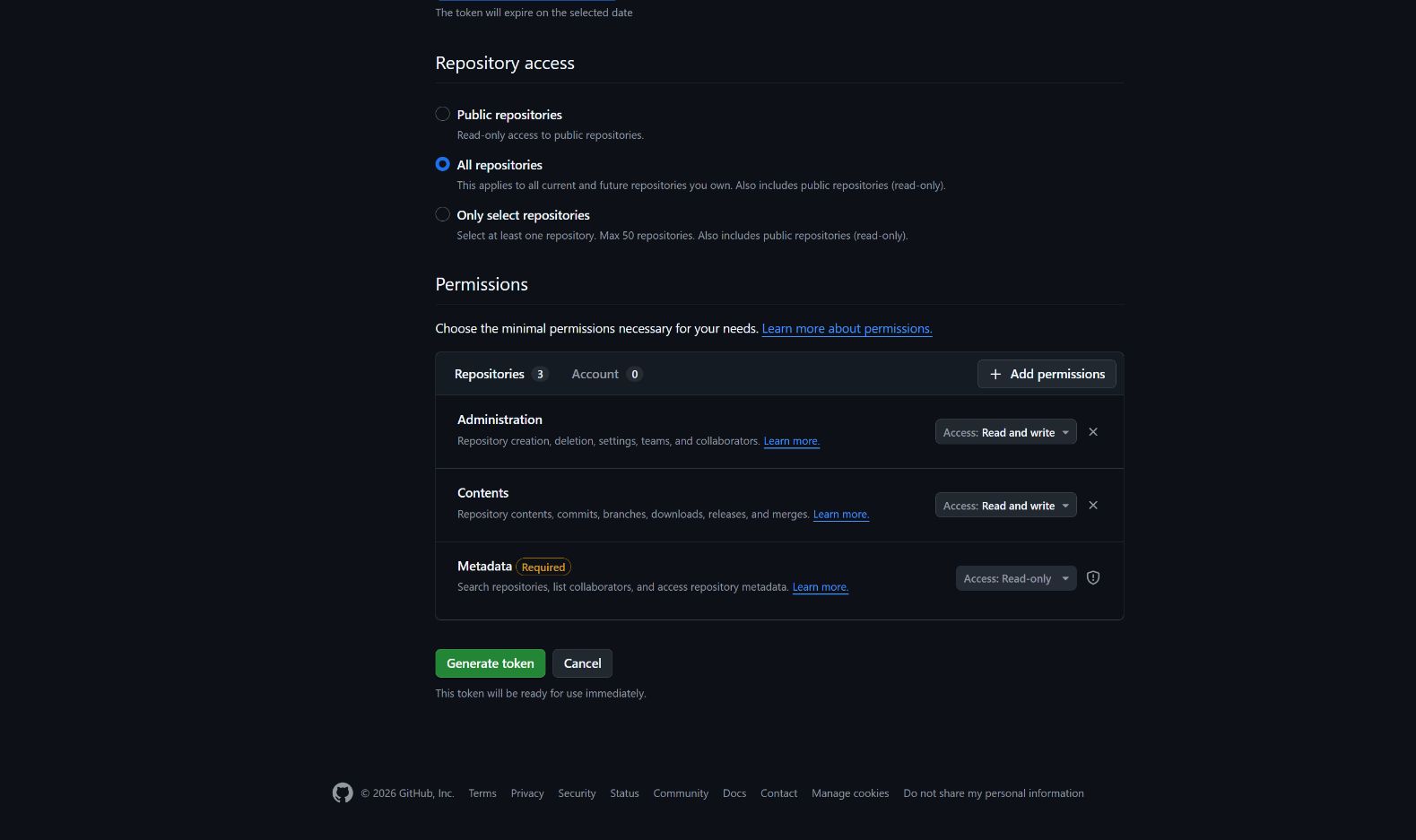
Your permissions should match this table:
| Permission | Access |
|---|---|
| Administration | Read and write (create/manage the repository) |
| Contents | Read and write (publish source) |
| Metadata | Read-only, added automatically |
| Workflows | Read and write only when publishing .github/workflows files |
Leave Account permissions unchanged. A fine-grained token for an organization may need owner approval before it works.
Click Generate token, then copy the token immediately. You won't be able to view the full value again after leaving the page.
Save it in .env
Open the root .env file beside package.json. If it doesn't exist, copy .env.example to .env. Find the existing GITHUB_TOKEN= line, paste your token after the equals sign and save:
GITHUB_TOKEN=replace_with_your_github_tokenReplace the example value with your token. Keep one active GITHUB_TOKEN line and preserve the file's other settings. On Windows, make sure the file is named .env, not .env.txt.
Keep this token only in your local .env. It's a setup credential, so it never goes into Vercel's environment variables either.
You are finished when
GITHUB_TOKENhas one saved value in the root.envfile.- For a new automatic deployment,
GITHUB_OWNER,GITHUB_REPO_NAMEandGITHUB_REPO_IDremain blank. Kickstart fills them in. Keep existing values if you've already started deployment.
Next, prepare your Vercel token and GitHub App connection. Vercel needs that connection to build from your repository. If you limit the App to selected repositories, add the new repository when Kickstart pauses for authorization, then rerun with the same saved settings.
Once all deployment accounts are ready, run this read-only check:
npm run kickstart:deploy -- --checkResolve any errors before deploying. This command checks your configuration and account access; it doesn't create a repository or prove that a future push will succeed.
Use a precreated empty repository
Template 0.0.1 · September 2026 source snapshot