By the end of this guide, your Stripe test Secret key will be saved in the starter's root .env file. Kickstart uses it to set up your app's test billing, including products, prices and the billing portal. You don't need to create those yourself.
Test Secret key
Sign in and choose a sandbox
Open the Stripe Dashboard. Create an account if you don't have one, or sign in to the account you'll use for your app.
Open the account menu in the top-left corner and choose Switch to sandbox. Select your app's sandbox, or choose Create sandbox if you haven't made one. Keep using the same sandbox throughout setup.
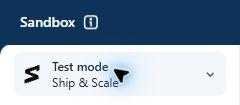
Check for the Sandbox banner at the top. An existing Test mode environment also works; the screenshot below shows that view. Payments here don't move real money.
Copy the test Secret key
Open API keys and check that you're still in your chosen test environment. Select Secret keys, find the Secret key row and click the copy icon beside its token. If Stripe shows a reveal control first, use it to display the key.
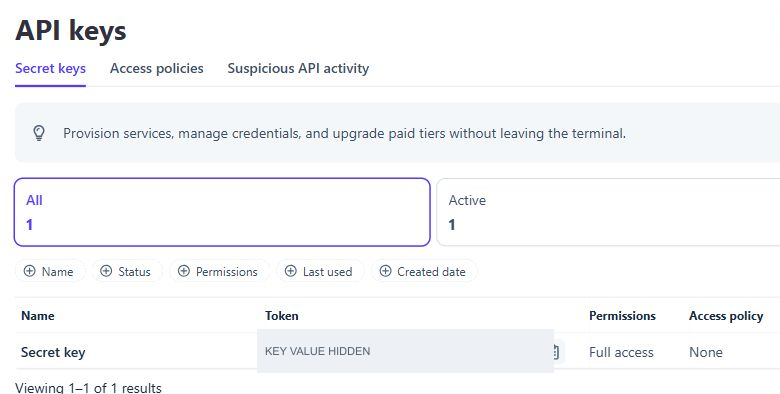
The key for this walkthrough starts with sk_test_. The Publishable key at the top starts with pk_test_ and won't work in this field.
If you have no Secret key, choose Create secret key, complete Stripe's verification and name it Ship & Scale Kickstart. Copy the key when Stripe displays it. If your account can't manage keys, ask its owner for access. See Stripe's API key guide if your controls differ.
Save it in .env
Open the root .env file beside package.json. If it doesn't exist, copy .env.example to .env. Find STRIPE_TEST_SECRET_KEY=, paste your key after the equals sign and save:
STRIPE_TEST_SECRET_KEY=sk_test_REPLACE_WITH_YOUR_KEYReplace the example with your actual key. Keep one line for this setting and leave STRIPE_LIVE_SECRET_KEY empty for now.
Keep the Secret key private
Anyone with this key can manage your Stripe account's test data. Store it only in .env, as described in Keep your keys private.
You are finished when
STRIPE_TEST_SECRET_KEYcontains yoursk_test_key in the root.envfile.- The key belongs to the test environment you chose for your app.
After saving the Supabase, Stripe and Resend credentials, run npm run kickstart:check to check them before setup.
Live Secret key
You only need this before deploying with billing enabled. First activate your Stripe account by adding your business and payout details; Stripe needs these before it accepts real payments. Then leave the sandbox, open your live account and return to API keys. Copy its live Secret key into the separate field:
STRIPE_LIVE_SECRET_KEY=sk_live_REPLACE_WITH_YOUR_KEYKeep your test key in its original field. Save a newly created live key immediately; Stripe only shows it once. Complete the launch checks before accepting real payments.
Template 0.0.1 · September 2026 source snapshot